

Working from home is now part of daily life for millions of people across the UK. It gives you flex time, cuts out long train rides, and lets you work in your tracksuits. But working outside a formal office brings a real danger: cyber attacks. Home Wi-Fi setups, personal laptops, and public cafe networks are easy targets for online thieves. One simple mistake can leak company files, drain your bank account, or lock your computer screen. This complete guide will show you easy, proven ways to keep your work and private info safe. You do not need to be a tech wizard to follow these steps. By making a few small changes today, you can block hackers, guard your identity, and work from anywhere with peace of mind. Read on to build your home defense plan now.
Cybersecurity best practices for remote workers
Staying safe online requires a few simple daily habits. Below is your step-by-step guide to securing your home office, protecting private files, and keeping online hackers away for good.
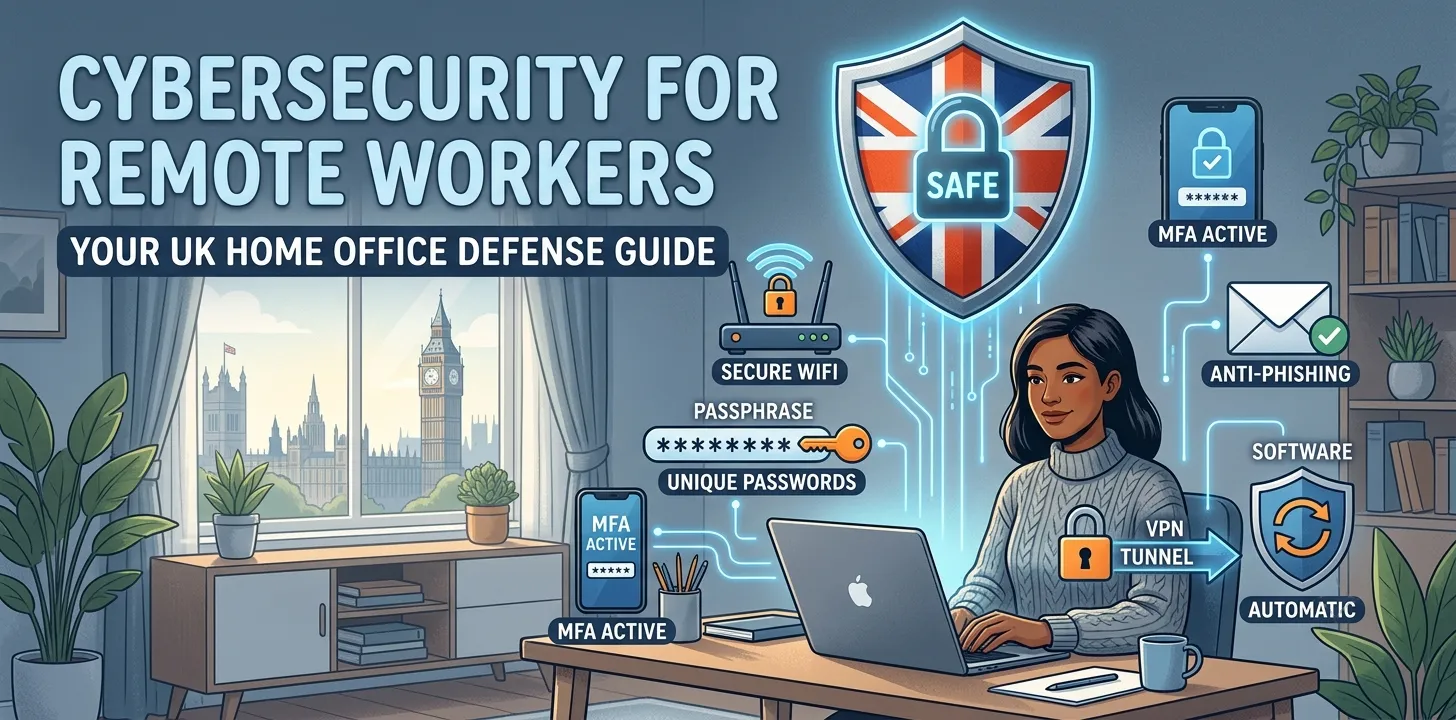
Secure Your Home Wi-Fi Network
Your home router is the main front door to your digital life. Most internet providers send out routers with simple factory passwords printed on the back tag. Hackers keep lists of these default codes. If they stand near your house, they can join your network in seconds and view your web traffic. Change the admin password on your router right away. Next, change your network name so it does not show your brand of router or your street number. Always turn on WPA3 encryption, or WPA2 if WPA3 is missing on older models.
During my work as an IT advisor for a small firm in Manchester, I saw this exact issue. A staff member used their default Wi-Fi code at home. A bad actor sitting in a car nearby joined the network and intercepted sensitive company emails. Turning on strong security rules stopped future attacks cold.
Follow these steps to lock down your network today:
- Log in to your router settings using the IP address on the back sticker.
- Create a brand new password that uses letters, numbers, and symbols.
- Turn off guest access features if you do not use them regularly.
- Keep your router software updated to fix security holes.
Master Strong Passwords and Passphrases
Using short passwords like “Soccer123” or using the same code across ten different websites is a top cause of data leaks. Hackers use special software tools that test millions of word combinations every second. Once they figure out one code, they try it on your bank, work email, and social accounts. You need to create unique, long passphrases for every single login you use. A passphrase uses four or five random words stuck together, like “YellowDogRunsFastToday”. These are long enough to stop hacking tools, yet simple for your brain to recall.
To manage all these codes without writing them on paper, use a secure password manager tool. These tools store all your log-in details inside an encrypted digital vault. You only need to memorize one strong master key.
Here is how to set up your password system:
- Pick a trusted password manager tool for your computer and phone.
- Create passphrases that are at least sixteen characters long.
- Never share your codes over email, work chat, or text messages.
- Change your primary work passwords every six months.
Check out our related guide on picking the top password managers for UK workers to find the best tool for your budget.
Enable Multi-Factor Authentication
Multi-Factor Authentication, or MFA, adds a extra security door to your accounts. Even if a thief steals your password, they still cannot log in without a second proof code. This code is sent to your personal mobile device or created inside a security app on your phone. Most major platforms like Google, Microsoft, and slack support MFA today. Turning this feature on stops almost all automatic hacking attempts dead in their tracks.
In one firm I audited last year, over twenty staff members fell for a trick email that stole their login details. But because the company made MFA mandatory for all workers, the hackers could not get past the secondary code prompt on the phones. Zero data was lost.
Make sure you turn on these MFA rules:
- Avoid SMS text codes when possible, as phone numbers can be spoofed.
- Use an authenticator app like Google Authenticator or Microsoft Authenticator.
- Save your backup recovery codes in a physical lockbox at home.
- Turn on MFA for your personal email first, as it holds reset links for other accounts.
Avoid Phishing Scams and Fake Emails
Phishing is when online criminals send fake emails, texts, or messages to trick you. They often pretend to be your boss, the HMRC, your bank, or a delivery company like Royal Mail. These notes try to panic you into clicking a bad link or opening an unsafe file attachment. Once you click, malware installs on your device, or a fake form steals your log-in details. Always slow down and check the full sender address before you interact with any strange message.
Watch out for these common warning signs:
- Urgent demands for money, gift cards, or bank details.
- Sender addresses with tiny typos, like “@gmaill.com” instead of “@gmail.com”.
- Links that lead to strange websites when you hover your mouse over them.
- Generic greetings like “Dear Customer” instead of your real name.
- Odd attachments with endings like “.exe” or “.zip”.
If you want to spot fake messages quickly, read our related guide on how to spot email phishing scams before you click.
Use a Virtual Private Network
A Virtual Private Network, or VPN, scrambles all the internet data moving in and out of your laptop. It creates a private, encrypted tunnel between your computer and the web. This is super important if you like to work from coffee shops, libraries, or train stations. Free public Wi-Fi spots in these venues are usually unencrypted. Anyone on the same network can intercept what you type, including passwords and work documents. A VPN hides your true location and keeps your traffic hidden from prying eyes.
Follow these rules when using a VPN at work:
- Always turn on your VPN before connecting to public Wi-Fi networks.
- Choose a corporate VPN provided by your company IT team if available.
- Pick a commercial VPN provider that keeps strict “no logs” policies for personal use.
- Turn on the “kill switch” setting so internet stops if the VPN drops.
Keep All Software and Devices Updated
Software makers regularly find bugs and safety holes in their applications. When they find a hole, they release a quick software update or “patch” to fix it. Hackers constantly scan the web looking for computers running old software versions so they can slip inside. If you press “remind me tomorrow” on update pop-ups, you leave your laptop wide open to attack. Keeping your operating system, web browsers, and applications updated is one of the easiest defenses you have.
Follow this simple update routine:
- Turn on automatic updates for Windows or macOS systems.
- Set your web browsers to update automatically upon restarting.
- Delete old apps and software you no longer use on your computer.
- Restart your computer at least once a week to apply pending updates.
Frequently Asked Questions
Find quick, helpful answers to the most common questions remote workers ask about online security, home routers, and protecting sensitive business files.
What is the biggest security risk for remote workers?
The biggest risk is phishing emails that trick staff into giving away passwords. Phishing causes most company data leaks because it targets human error rather than technical flaws.
Should I use my personal laptop for remote work?
You should avoid using personal laptops for work tasks. Personal devices often lack corporate firewalls, updated antivirus software, and secure backup tools needed to stop data theft.
Is public Wi-Fi safe if I use a password?
Public Wi-Fi is not safe just because it needs a password. Other people on the same network can still capture your unencrypted data unless you turn on a VPN.
Conclusion
Keeping your remote work setup safe does not have to be stressful or hard. By securing your home Wi-Fi, creating long passphrases, turning on MFA, and using a VPN, you build a strong defense system. Cybercriminals look for easy, lazy targets. When you apply these simple habits, bad actors will pass right over your accounts and move on to easier targets. As my final expert tip: start by turning on multi-factor authentication on your primary email account today. That single step locks down the main hub of your digital life and prevents the most damaging attacks. Your immediate next step is to log into your home router and change that default password right now. Do not wait for a security incident to take action. Take ten minutes today to lock your digital doors and enjoy working remotely with complete confidence.